Using Artificial Intelligence to Enhance Mathematics Resources
AI in the Secondary Mathematics classroom

Over the past few years, I have heard that Artificial Intelligence can reduce teacher workload and aid student learning, among other things. However, until recently, I’d failed to see how it would benefit me as a classroom teacher.
Now, I have increasingly been using Artificial Intelligence in my classroom to enhance and create resources, as I have found ways it can benefit students and save me time. I wanted to share some ways I have used AI, starting with one use in this post.
Key Points
You must know what a good activity and resource for the Mathematics classroom looks like before you start using AI to generate them. Without the right prompts (which come from subject and task-design knowledge), you may end up with something that is not very good.
Everything I share uses Google's Gemini. I’ve found this to be the best model for Mathematics.
AI can be wrong. I’ve found it to occasionally make mistakes with A-Level Maths so far, so watch out for this. I’ve never seen it make mistakes in KS3 or GCSE-level Maths. You can ask Gemini to check its own answers, and it will usually catch its own mistakes.
Why use AI?
The most significant advantage I’ve found is that it can generate questions specifically tailored to my class, in a way that premade worksheets can’t, and that would take me a long time to make myself.
There are other uses that I’ve found, but I will focus on this particular use for this post.
Using Gemini as a Question Generator
I use Gemini most often to generate sets of questions for students to complete, in a format suitable for display (projecting) on the board. I find this advantageous for learners in my classroom because I can specify exactly how I want questions to progress and ensure learners focus on the specific skill I intend.
Take this as an example: I have taught identifying and collecting like terms (linear variables only) to a middle set Year 9 class, and I now want students to practice this. I want the activity to build in difficulty, and ensure that their attention is entirely on identifying and collecting like terms to begin with (not, for example, if the term is positive or negative, and the additional consideration that comes with this), so I want a mix of variables and for them to all be positive terms to begin with.
I find a worksheet online. It meets some of these criteria, so it would be good enough. However, this activity isn’t exactly what I want for my class. At this point, I’d usually write my own questions.
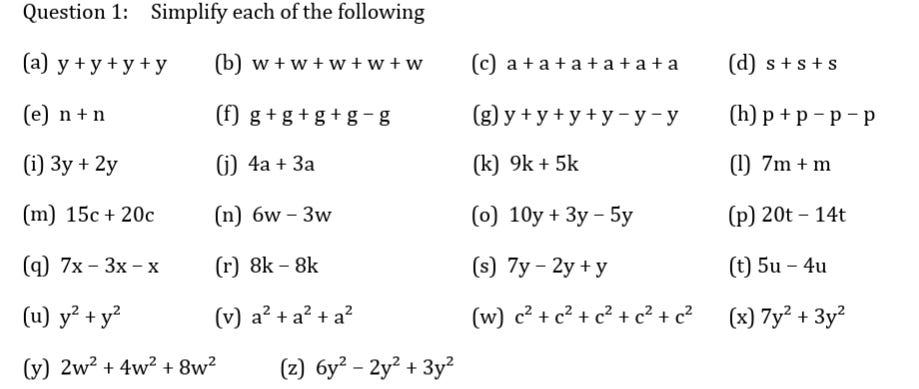
(Source: https://corbettmaths.com/)
Note: Corbett Maths has a fantastic bank of questions that I use in lessons. This is not intended as a criticism of the worksheet, but rather an example of how any worksheet generated by someone else will inevitably not be tailored for your specific lesson or classroom of students.
I could spend a while writing my own questions, or I can use AI to do this for me.
I give a prompt to Gemini, stating exactly what I want (I’ll hide the instruction for the layout setup for now):
“… I’d like 18 questions, 3 columns, 6 rows, on the topic of “collecting like terms”. All variables should have the highest power of 1. It should be suitable for middle-attaining Year 9 students, and gradually build in difficulty, up to what would be expected on a higher-tier GCSE paper. I want the questions to start with only positive terms, and halfway through, they should start to include negative terms. All questions should have at least two variables, some with constants, some without.”
A key point here is that the more specific you are, the better output you will get. You could write 2 pages of information, if you like.
Before the above prompt, I had defined the grid layout and a click-to-reveal answers setup. The result is shown here:
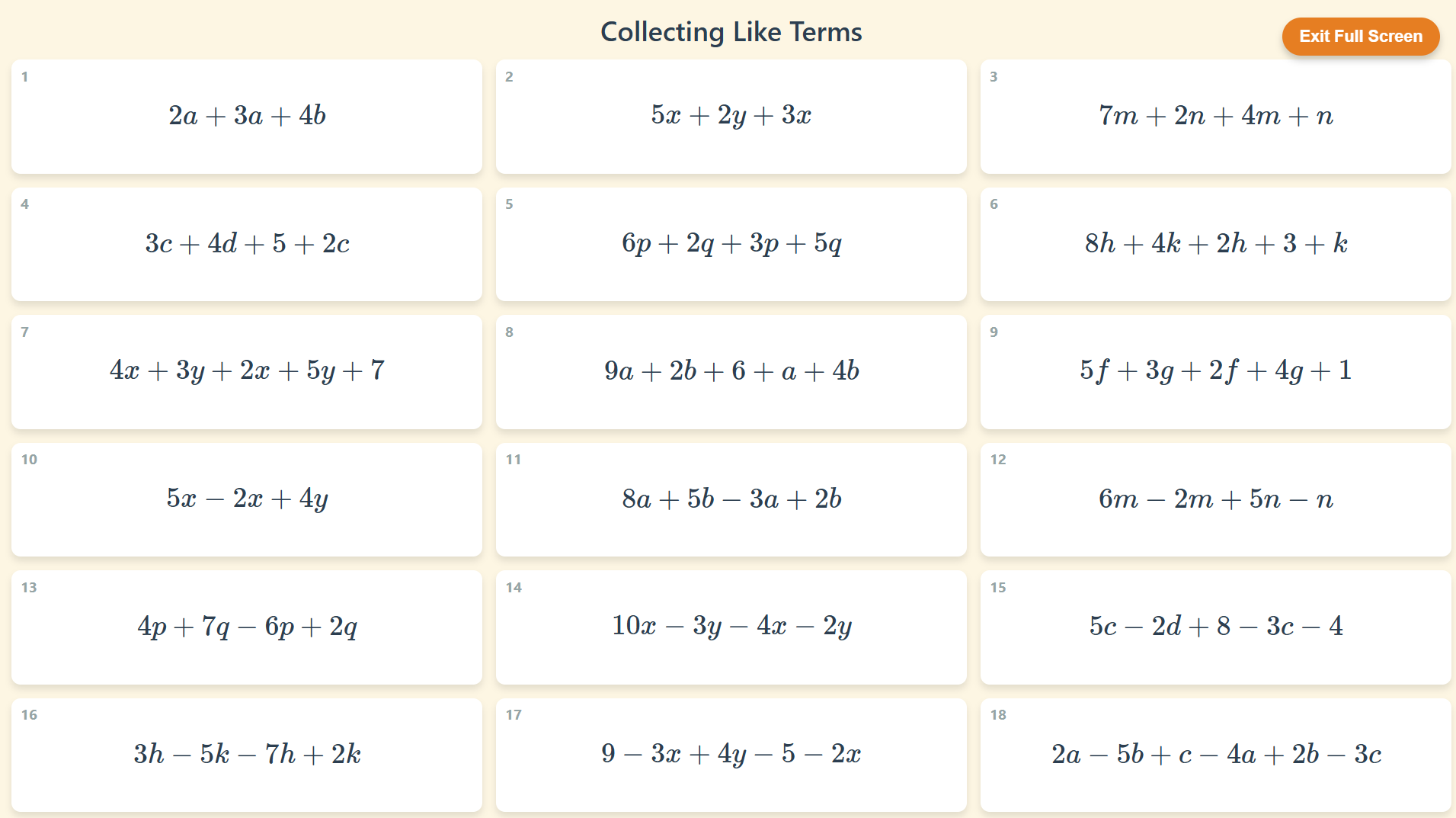
I may also want a well-designed activity on identifying like terms before this, so students are confident with this beforehand. This is not something I can find resources for online, so I can write it myself, or use AI. I gave a similarly detailed prompt, and got this:

Note that I can click to reveal answers, as shown in some questions.
It can also make diagrams and graphs. Here is an example I’ve made as a recap of Histograms and Cumulative Frequency diagrams for my Year 11 class. Again, they have click-to-reveal solutions. The prompt for this was to cover Histograms across the GCSE specification, up to a certain level.
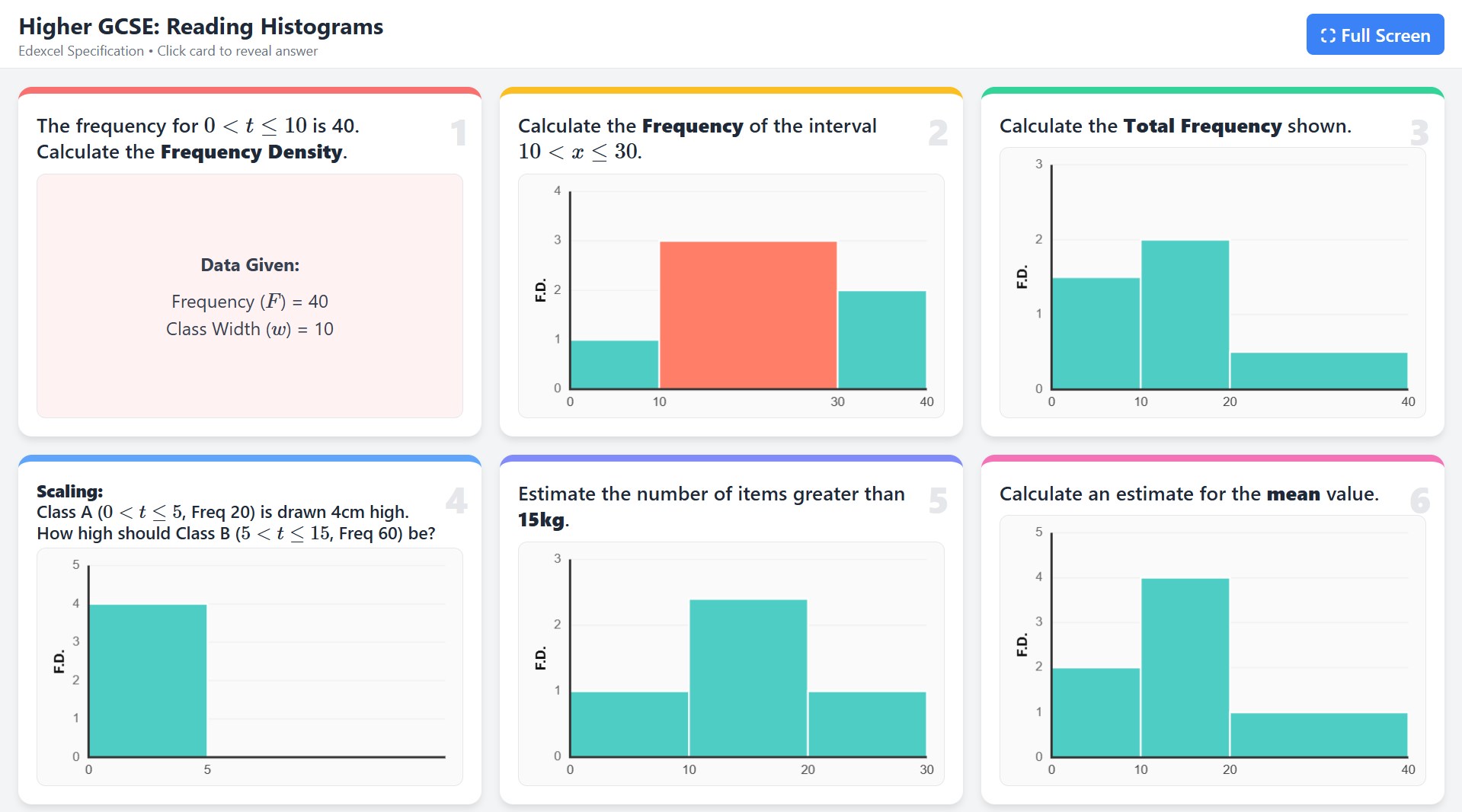
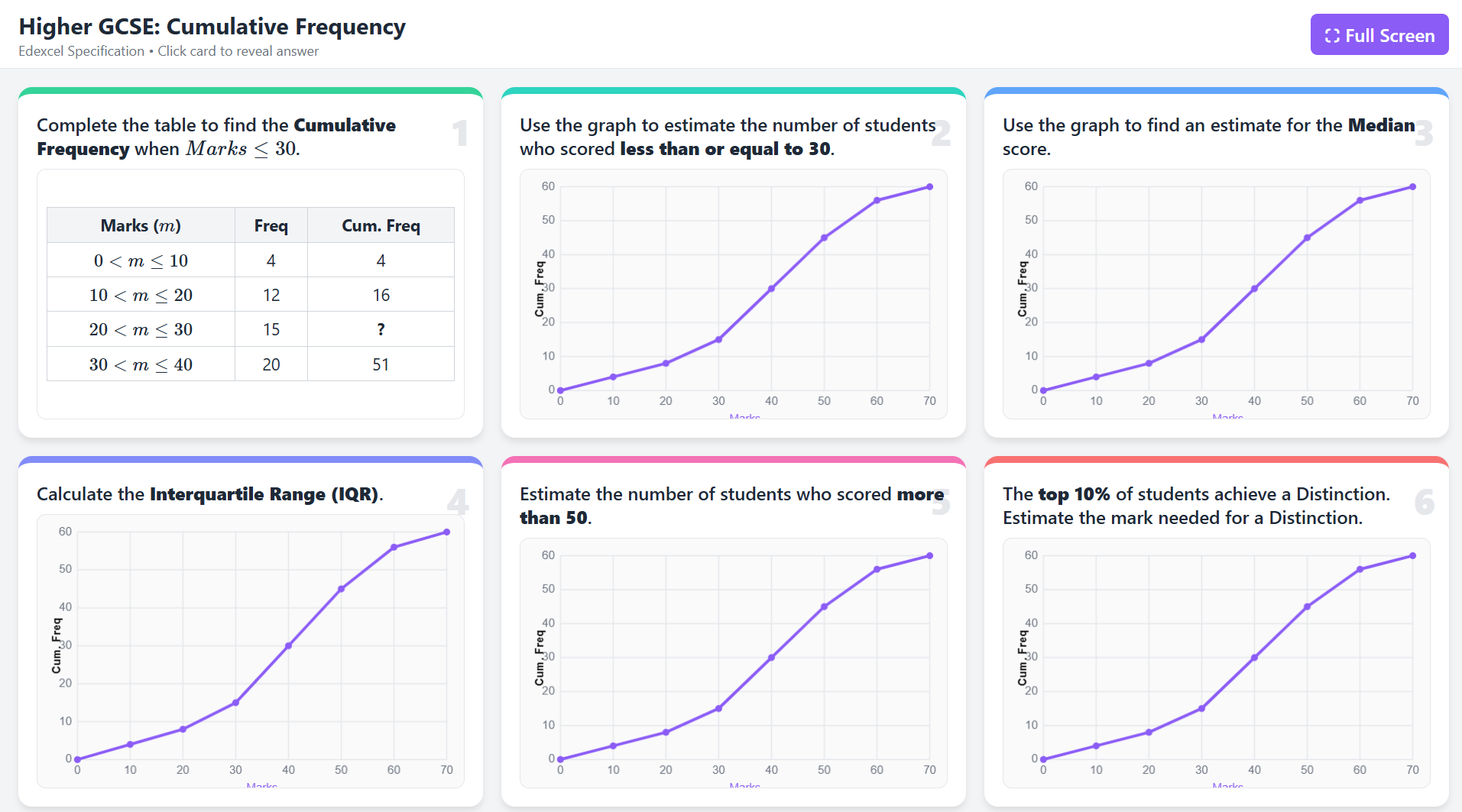
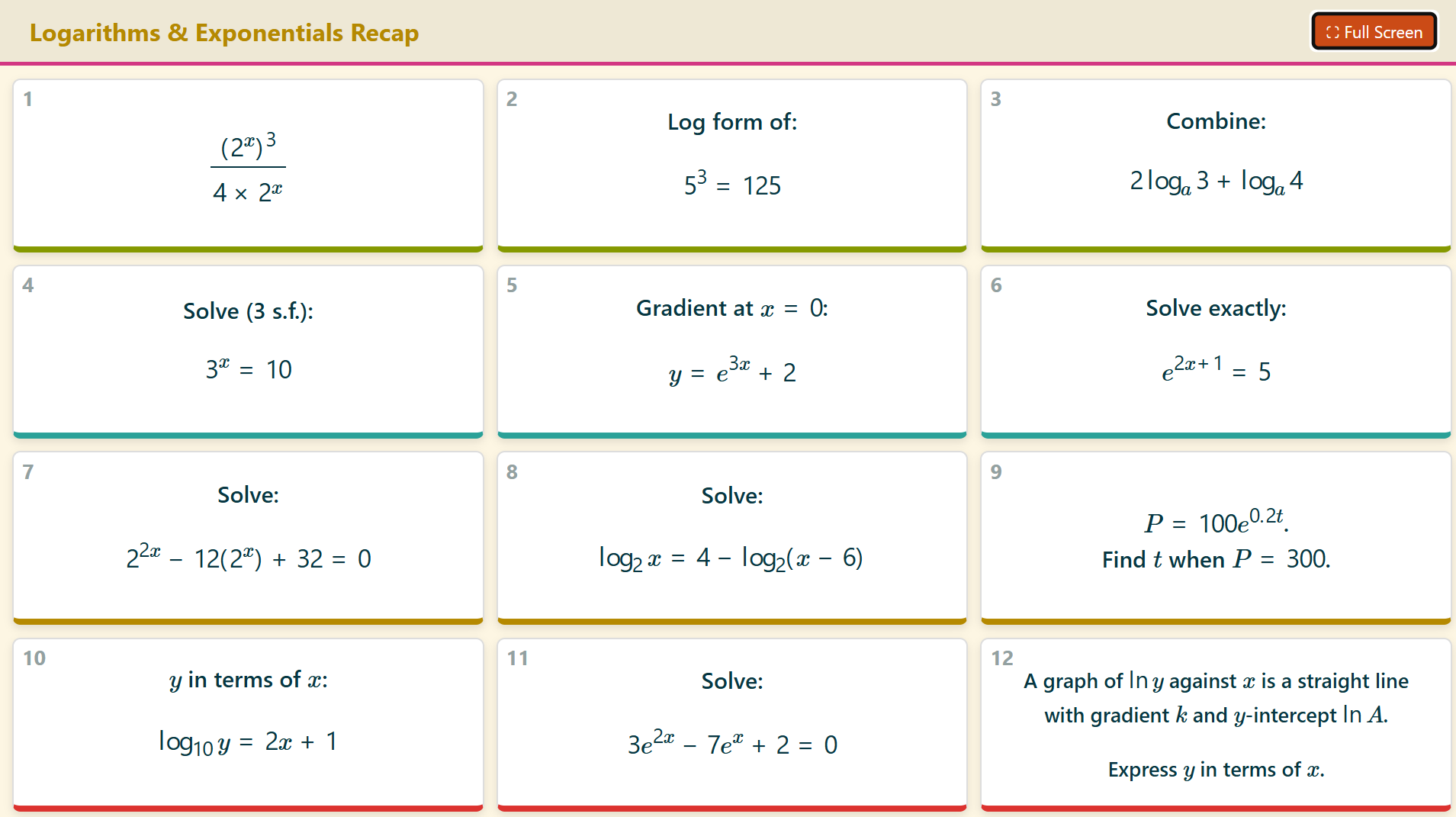
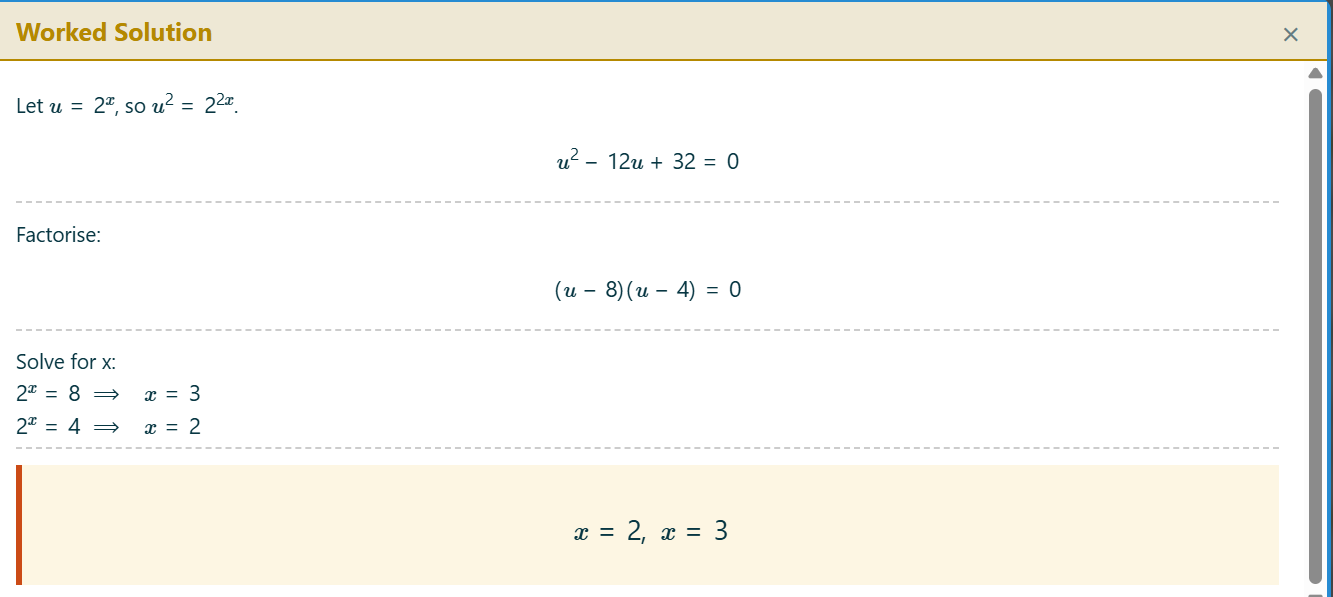
My Year 12s had studied Logarithms and Exponentials before the Christmas break. I want to recap this at the start of our first lesson back. I gave quite a vague prompt, asking for AS Level content to be covered. It’s an example of how you can easily get together questions that otherwise might take a while to compile from various sources, or write yourself. Additionally, I’ve asked for full worked solutions to be built in.
Question 7: click to reveal the worked solution gives:
So, how do you do this?
What you need
A Google account (to access Gemini), a web browser (e.g. Chrome), Notepad (built into Windows).
And that’s it.
The process
This will seem complicated at first, but once you’ve done it a few times, it’ll be easy and quick.
I’ll outline in detail exactly how I generated these activities; you can use the same or similar prompts to achieve similar results.
Open a web browser, sign in to a Google account.
Go to: https://gemini.google.com/
Change it to the “Thinking” or “Pro” model, using the dropdown next to the textbox. Click “tools” and choose Canvas (this allows you to view the generated activity within the Gemini environment).
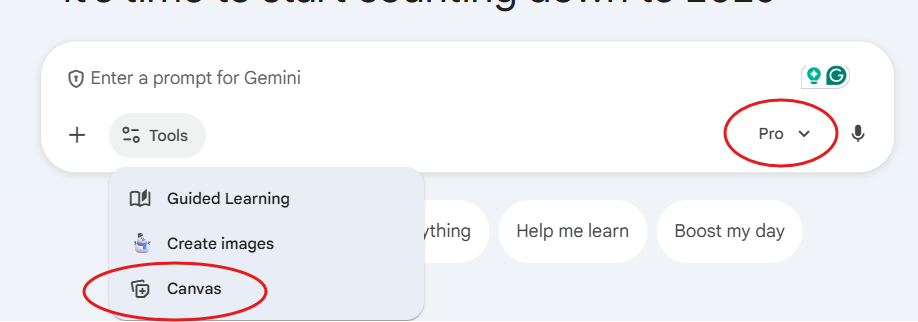
Type in the following prompt, changing the second part to the conditions of your desired activity. You can also change any other part you feel necessary, such as adding a title or instructions for the activity, or changing how you want it to look.
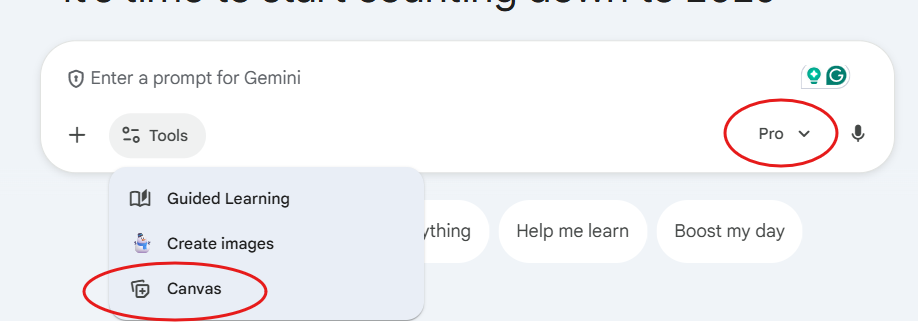
“You are a mathematics expert who creates grids of questions, for example, 18 total, 3 columns, 6 rows, using HTML, CSS, MathJax for Maths formatting and any other suitable libraries. The questions should gradually increase in difficulty as they progress.
All questions should fit on one laptop screen. The user should be able to click each question to reveal the answer. Once the answer is revealed, it should still fit on one laptop screen, the question and answer should both be displayed and fit in the original size box.
Include a button to make it full screen. Ensure that questions are numbered, and consider that the questions will be projected on a board for students to complete when choosing font sizes. Make it look modern, simple, colourful.
Below I will provide the topic, level of difficulty and number of questions. You will use this to generate the questions.

I’d like 18 questions, 3 columns, 6 rows, on the topic of “collecting like terms”. All variables should have the highest power of 1. It should be suitable for middle-attaining Year 9 students, and gradually build in difficulty, up to what would be expected on a higher-tier GCSE paper. I want the questions to start with only positive terms, and halfway through, they should start to include negative terms. All questions should have at least two variables, some with constants, some without."
It will generate a screen similar to this
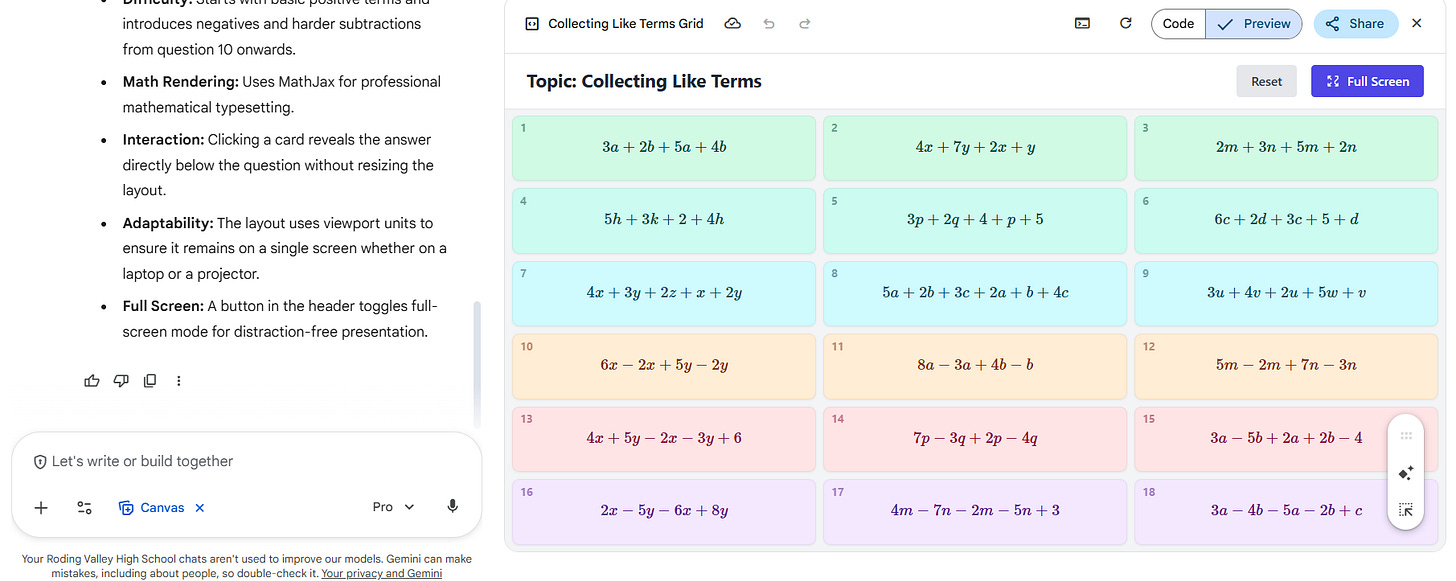
If you are not happy with the layout or questions, or if you see any errors, ask Gemini to fix/change anything you like in the chat box.
If you are happy, click “Code” at the top

8. Copy the code from this section into a Notepad file (search for the Notepad app on Windows)

9. Paste the code into it, name it as e.g. “Collecting_like_terms.html” and save it in a convenient location.
The .html at the end is essential for this to work. Have no spaces in the file name.Open this file in a web browser by either: double-click the saved file in the location you saved it, or from a browser like Chrome type “Ctrl+O” then find the file to open it.
It will appear for you to view and interact with.
You could also hyperlink this file into PowerPoints for ease of access during lessons.



Some notes and fixes to common errors
Notepad can be accessed on any Windows computer by searching for it; any other text editor will work too.
If there are any formatting errors, such as variables appearing as %x%, ask Gemini to fix the problem, describing what the issue is. It will generate new code.
It will occasionally do things like cut off questions from the screen, or have text that is too small. It might take a few prompts to resolve all these issues. Just describe the issue for Gemini to fix. This can take a bit of time, but overall, I find it saves far more time than writing the questions yourself.
Similarly, if you’re not happy with the questions or layout, describe how you’d like them to be changed. You can change the initial prompt to be more detailed, describing the layout and style you’d like.
If you have read to the end, I hope there is something you may find helpful or inspiring towards making your own resources. It’s worth experimenting with and bringing your own ideas to it if you feel it would benefit students in your classroom.
If you’d like to directly try or see one of the activities used in this post, copy the code below into a Notepad document. Save it as e.g. “maths.html” and open it in a browser to see the finished result.
<!DOCTYPE html>
<html lang="en">
<head>
    <meta charset="UTF-8">
    <meta name="viewport" content="width=device-width, initial-scale=1.0">
    <title>Collecting Like Terms - Question Grid</title>

    <script src="https://polyfill.io/v3/polyfill.min.js?features=es6"></script>
    <script id="MathJax-script" async src="https://cdn.jsdelivr.net/npm/mathjax@3/es5/tex-mml-chtml.js"></script>

    <style>
        :root {
            --bg-color: #fdf6e3;
            --card-bg: #ffffff;
            --card-shadow: 0 4px 6px rgba(0,0,0,0.1);
            --card-hover: #fff3e0;
            --text-primary: #2c3e50;
            --text-secondary: #e67e22;
            --border-radius: 8px;
        }

        body {
            font-family: 'Segoe UI', Tahoma, Geneva, Verdana, sans-serif;
            margin: 0;
            padding: 10px;
            background-color: var(--bg-color);
            height: 100vh;
            display: flex;
            flex-direction: column;
            box-sizing: border-box;
            overflow: hidden;
        }

        header {
            text-align: center;
            margin-bottom: 10px;
            color: var(--text-primary);
            flex: 0 0 auto;
            position: relative; /* Allows button positioning relative to header if needed, though we use fixed below */
            padding: 0 60px; /* Add padding so title doesn't hit the button on small screens */
        }

        h1 {
            margin: 0;
            font-size: 1.5rem;
            font-weight: 600;
        }

        /* The Grid Container */
        .grid-container {
            display: grid;
            grid-template-columns: repeat(3, 1fr);
            grid-template-rows: repeat(6, 1fr);
            gap: 12px;
            flex: 1 1 auto;
            height: 100%;
            width: 100%;
            max-width: 1600px;
            margin: 0 auto;
        }

        /* Individual Question Card */
        .card {
            background: var(--card-bg);
            border-radius: var(--border-radius);
            box-shadow: var(--card-shadow);
            display: flex;
            flex-direction: column;
            justify-content: center;
            align-items: center;
            text-align: center;
            cursor: pointer;
            transition: transform 0.2s, background-color 0.2s;
            position: relative;
            padding: 5px;
            user-select: none;
            overflow: hidden;
        }

        .card:hover {
            transform: translateY(-2px);
            background-color: var(--card-hover);
        }

        /* Question Number */
        .q-num {
            position: absolute;
            top: 5px;
            left: 8px;
            font-size: 0.8rem;
            color: #95a5a6;
            font-weight: bold;
        }

        /* Content Styling */
        .math-content {
            font-size: 1.4rem;
            color: var(--text-primary);
            margin-bottom: 0;
            transition: margin 0.3s;
        }

        /* Answer Styling */
        .answer {
            font-size: 1.4rem;
            color: var(--text-secondary);
            font-weight: bold;
            opacity: 0;
            max-height: 0;
            transition: all 0.3s ease;
            margin-top: 5px;
        }

        .card.revealed .answer {
            opacity: 1;
            max-height: 50px;
        }

        .card.revealed {
            background-color: #fff8e1;
            border: 2px solid #ffe0b2;
        }

        /* Full Screen Button - Moved to Top Right */
        #fs-btn {
            position: fixed;
            top: 15px; /* Moved to top */
            right: 20px;
            background-color: #e67e22;
            color: white;
            border: none;
            padding: 8px 15px;
            border-radius: 50px;
            cursor: pointer;
            font-weight: bold;
            box-shadow: 0 4px 6px rgba(0,0,0,0.2);
            transition: background 0.2s;
            z-index: 100;
            font-size: 0.9rem;
        }

        #fs-btn:hover {
            background-color: #d35400;
        }

        @media (max-height: 700px) {
            .math-content, .answer { font-size: 1.1rem; }
            h1 { font-size: 1.2rem; }
        }
    </style>
</head>
<body>

    <header>
        <h1>Collecting Like Terms</h1>
    </header>

    <div class="grid-container">
        <div class="card" onclick="toggleAnswer(this)">
            <span class="q-num">1</span>
            <div class="math-content">\( 2a + 3a + 4b \)</div>
            <div class="answer">\( 5a + 4b \)</div>
        </div>
        <div class="card" onclick="toggleAnswer(this)">
            <span class="q-num">2</span>
            <div class="math-content">\( 5x + 2y + 3x \)</div>
            <div class="answer">\( 8x + 2y \)</div>
        </div>
        <div class="card" onclick="toggleAnswer(this)">
            <span class="q-num">3</span>
            <div class="math-content">\( 7m + 2n + 4m + n \)</div>
            <div class="answer">\( 11m + 3n \)</div>
        </div>

        <div class="card" onclick="toggleAnswer(this)">
            <span class="q-num">4</span>
            <div class="math-content">\( 3c + 4d + 5 + 2c \)</div>
            <div class="answer">\( 5c + 4d + 5 \)</div>
        </div>
        <div class="card" onclick="toggleAnswer(this)">
            <span class="q-num">5</span>
            <div class="math-content">\( 6p + 2q + 3p + 5q \)</div>
            <div class="answer">\( 9p + 7q \)</div>
        </div>
        <div class="card" onclick="toggleAnswer(this)">
            <span class="q-num">6</span>
            <div class="math-content">\( 8h + 4k + 2h + 3 + k \)</div>
            <div class="answer">\( 10h + 5k + 3 \)</div>
        </div>

        <div class="card" onclick="toggleAnswer(this)">
            <span class="q-num">7</span>
            <div class="math-content">\( 4x + 3y + 2x + 5y + 7 \)</div>
            <div class="answer">\( 6x + 8y + 7 \)</div>
        </div>
        <div class="card" onclick="toggleAnswer(this)">
            <span class="q-num">8</span>
            <div class="math-content">\( 9a + 2b + 6 + a + 4b \)</div>
            <div class="answer">\( 10a + 6b + 6 \)</div>
        </div>
        <div class="card" onclick="toggleAnswer(this)">
            <span class="q-num">9</span>
            <div class="math-content">\( 5f + 3g + 2f + 4g + 1 \)</div>
            <div class="answer">\( 7f + 7g + 1 \)</div>
        </div>

        <div class="card" onclick="toggleAnswer(this)">
            <span class="q-num">10</span>
            <div class="math-content">\( 5x - 2x + 4y \)</div>
            <div class="answer">\( 3x + 4y \)</div>
        </div>
        <div class="card" onclick="toggleAnswer(this)">
            <span class="q-num">11</span>
            <div class="math-content">\( 8a + 5b - 3a + 2b \)</div>
            <div class="answer">\( 5a + 7b \)</div>
        </div>
        <div class="card" onclick="toggleAnswer(this)">
            <span class="q-num">12</span>
            <div class="math-content">\( 6m - 2m + 5n - n \)</div>
            <div class="answer">\( 4m + 4n \)</div>
        </div>

        <div class="card" onclick="toggleAnswer(this)">
            <span class="q-num">13</span>
            <div class="math-content">\( 4p + 7q - 6p + 2q \)</div>
            <div class="answer">\( -2p + 9q \)</div>
        </div>
        <div class="card" onclick="toggleAnswer(this)">
            <span class="q-num">14</span>
            <div class="math-content">\( 10x - 3y - 4x - 2y \)</div>
            <div class="answer">\( 6x - 5y \)</div>
        </div>
        <div class="card" onclick="toggleAnswer(this)">
            <span class="q-num">15</span>
            <div class="math-content">\( 5c - 2d + 8 - 3c - 4 \)</div>
            <div class="answer">\( 2c - 2d + 4 \)</div>
        </div>

        <div class="card" onclick="toggleAnswer(this)">
            <span class="q-num">16</span>
            <div class="math-content">\( 3h - 5k - 7h + 2k \)</div>
            <div class="answer">\( -4h - 3k \)</div>
        </div>
        <div class="card" onclick="toggleAnswer(this)">
            <span class="q-num">17</span>
            <div class="math-content">\( 9 - 3x + 4y - 5 - 2x \)</div>
            <div class="answer">\( -5x + 4y + 4 \)</div>
        </div>
        <div class="card" onclick="toggleAnswer(this)">
            <span class="q-num">18</span>
            <div class="math-content">\( 2a - 5b + c - 4a + 2b - 3c \)</div>
            <div class="answer">\( -2a - 3b - 2c \)</div>
        </div>
    </div>

    <button id="fs-btn" onclick="toggleFullScreen()">⛶ Full Screen</button>

    <script>
        function toggleAnswer(card) {
            card.classList.toggle('revealed');
        }

        function toggleFullScreen() {
            if (!document.fullscreenElement) {
                document.documentElement.requestFullscreen();
                document.getElementById('fs-btn').innerText = "Exit Full Screen";
            } else {
                if (document.exitFullscreen) {
                    document.exitFullscreen();
                    document.getElementById('fs-btn').innerText = "⛶ Full Screen";
                }
            }
        }
    </script>
</body>
</html>